

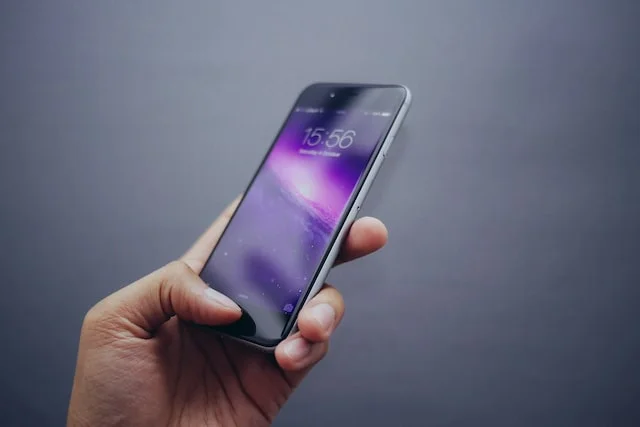
A lot of people, especially students, assume using an iPhone is complicated. One of the most common challenges is figuring out how to save PDF files on the device. Since most learning materials, lecture notes, and assignments are shared in PDF format, knowing how to properly save and access these files is very important.
The truth is, saving a PDF on an iPhone is actually very simple once you understand the steps. Whether the file comes through WhatsApp, email, or a browser, your iPhone has built-in tools that make the process smooth.
In this guide, we’ll take you through the easiest ways to download and save PDF files on an iPhone.
How to Download a PDF on iPhone
Before you can save a PDF, you first need to download it to your device.
Steps to follow
- Open the app where the PDF was sent to you, for example, WhatsApp or Gmail.
- Tap on the PDF attachment.
- Select the download option if it does not download automatically.
- Once downloaded, tap the file again to open it.
- The PDF will usually open in the Files app or Safari, depending on where it came from.
If you are using Gmail and cannot download the file, it is better to set up your email in the Apple Mail app for smoother access.
How to Save PDF on iPhone Using the Files App
The Files app is the most common and convenient way to store PDFs on an iPhone.
Steps to save your PDF
- Open the PDF file.
- Tap the Share icon, usually found at the bottom or top of the screen.
- From the menu that appears, select Save to Files.
- Choose a folder where you want to store the file.
- Tap Save.
If you do not select a folder, the file will be saved in the default location inside the Files app.
Once saved, you can access your PDF anytime by opening the Files app and searching for it.
How to Save PDF on iPhone Using Apple Books
Another easy way to store and organize PDFs is through the Apple Books app. This is especially useful for students who want to read documents like ebooks or lecture notes in a clean reading interface.
Steps to follow
- Open the PDF file from WhatsApp, email, or Safari.
- Tap the Share icon.
- Select Copy to Books.
- The file will automatically be saved in your Books library.
To access it later:
- Open the Books app
- Tap the Library tab
- Find your saved PDF and open it anytime
This method is great if you prefer reading documents in a more book-like format.
Saving PDFs from Safari on iPhone
If you download a PDF directly from Safari, the process is also straightforward.
- Tap the PDF link to open it in Safari.
- Tap the Share icon.
- Select Save to Files or Copy to Books depending on your preference.
- Choose a location and save.
Where Are Saved PDFs Stored on iPhone?
Saved PDFs are usually stored in one of two places:
- The Files app under “On My iPhone” or iCloud Drive
- The Books app under your Library
You can search for the file name directly if you cannot find it.
Final Thoughts
Saving PDFs on an iPhone is not complicated at all once you know where to look. Whether you use the Files app or Apple Books, both methods are simple and effective for storing and accessing your documents anytime.
For students and professionals in Ghana and beyond, this is a useful skill that makes studying and working much easier.
With just a few taps, you can download, save, and organize your files without stress.